 AI Homework Tutor
AI Homework Tutor
AI Homework Tutor
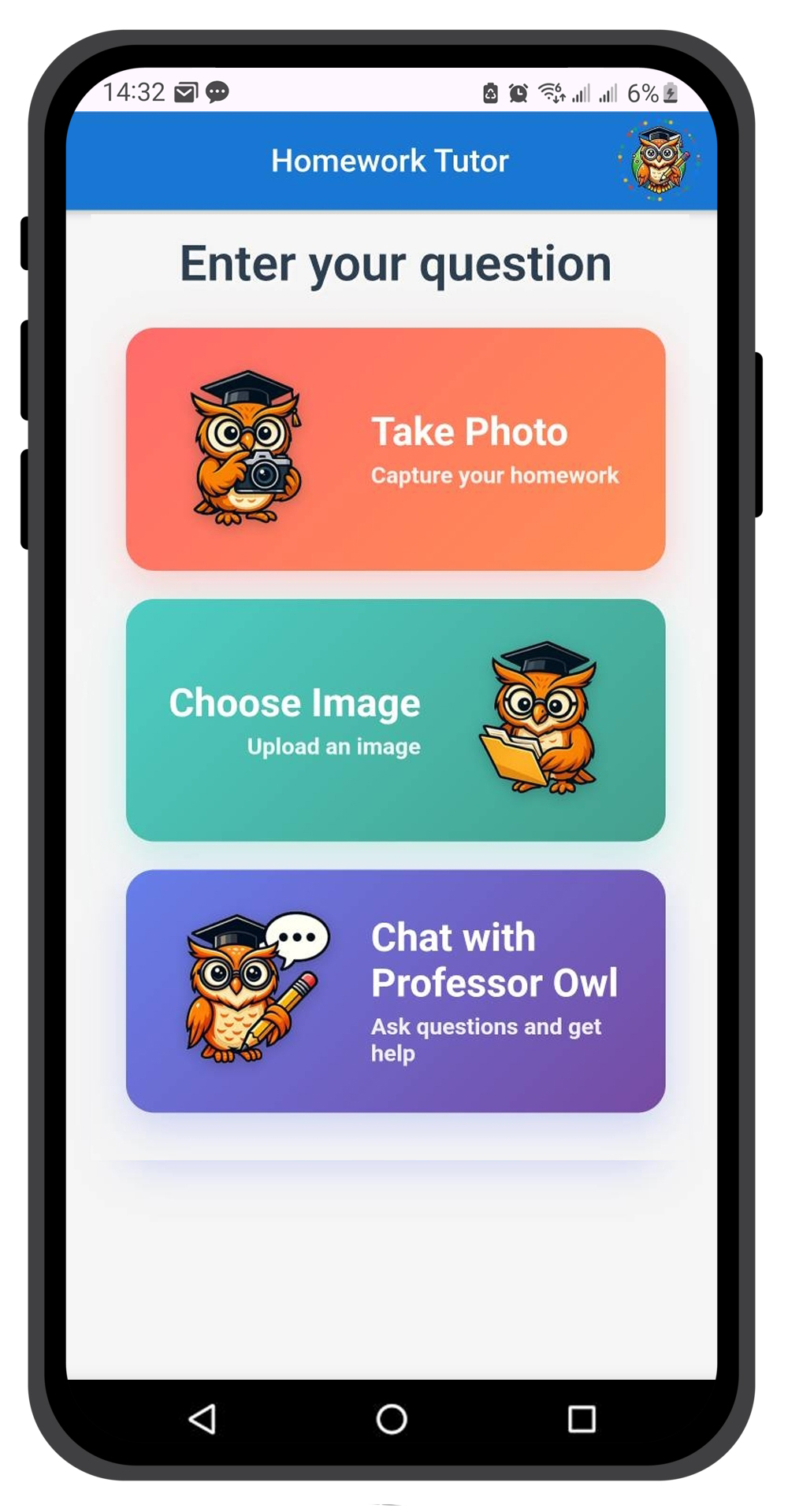
Auto-playing steps...
Press the Photo or Upload Image button to begin.
Take a clear photo of your homework question, or select an existing image from your gallery.
Best Results: Use bright light, keep the paper flat, and try to avoid shadows or glare.
If there are many blocks of unrelated questions on the same page, try not to include them in your photo. If unavoidable, you can remove them in the next stage.
You can include up to 4 photos. So, capture the story in one photo and the questions in another. Even if a story is spread over two pages, simply take a photo of each page, preferably in the correct order.
Select the key part of the image that shows the specific question and information you need help with.
You can crop and erase the image to remove anything confusing.
To add more images or photos simply click the "+" button towards the top right.
Tap Analyze. Prof Owl will start processing the images to understand the homework exercise.
Depending on the complexity and your language settings, this usually takes under a minute.
The various sections of Prof Owl's explanation of the homework will then start to arrive.
Prof Owl's analysis and explanation will appear in their respective panels.
In each panel there will be one or two audio buttons, depending on your language settings.
These will turn green when the audio is ready for playing. You can also click on any block of text to hear the audio as well.
If you still have questions about the solution, you can ask Prof Owl directly. Use text or voice in the Chat section at the bottom of the page.
For the best results, help Prof Owl focus on exactly what you need
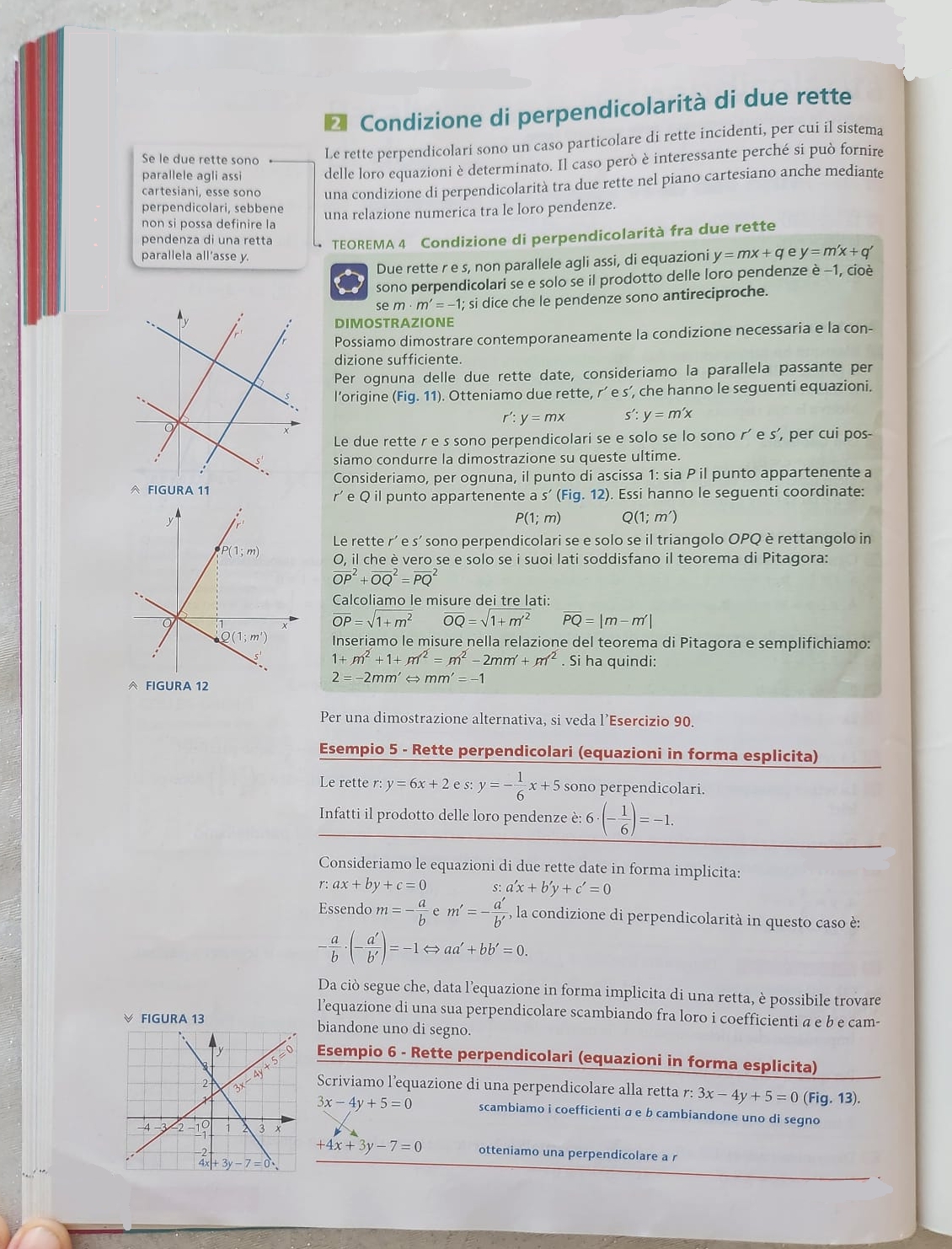
Photographing an entire page with many questions confuses the AI. Prof Owl won't know which question you want solved!
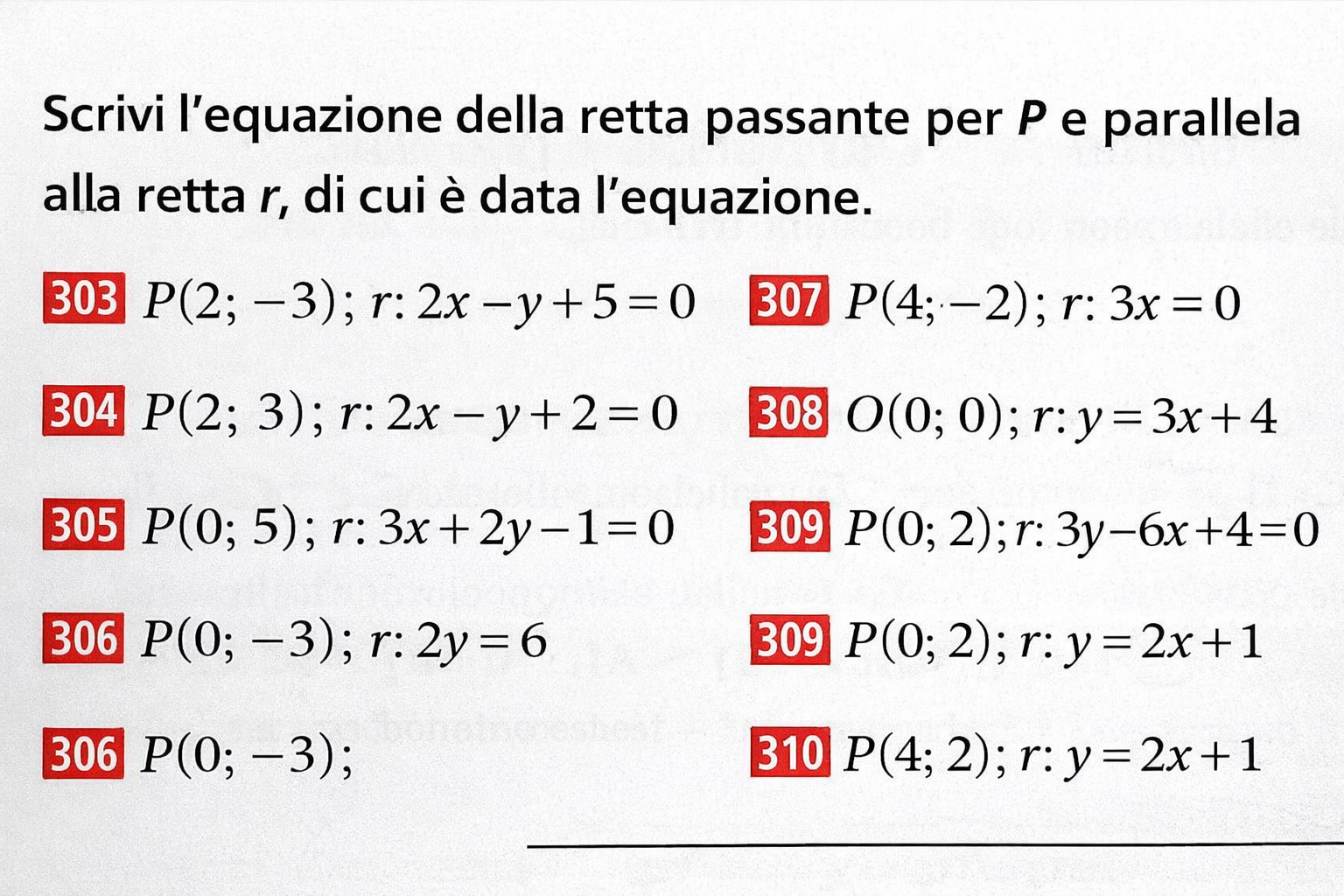
Focus on just the question you need help with. Crop or zoom in on that specific problem for the best explanation.